


Zoom connector
OAuth 2.0 communicationConnect to Zoom. Schedule meetings, manage recordings, and handle video conferencing workflows
Zoom connector
-
Install the SDK
Section titled “Install the SDK”Terminal window npm install @scalekit-sdk/nodeTerminal window pip install scalekit -
Set your credentials
Section titled “Set your credentials”Add your Scalekit credentials to your
.envfile. Find values in app.scalekit.com > Developers > API Credentials..env SCALEKIT_ENVIRONMENT_URL=<your-environment-url>SCALEKIT_CLIENT_ID=<your-client-id>SCALEKIT_CLIENT_SECRET=<your-client-secret> -
Set up the connector
Section titled “Set up the connector”Register your Zoom credentials with Scalekit so it handles the token lifecycle. You do this once per environment.
Dashboard setup steps
Register your Scalekit environment with the Zoom connector so Scalekit handles the authentication flow and token lifecycle for you. The connection name you create will be used to identify and invoke the connection programmatically. You’ll need your app credentials from the Zoom App Marketplace.
-
Set up auth redirects
-
In Scalekit dashboard, go to AgentKit > Connections > Create Connection. Find Zoom and click Create. Copy the redirect URI. It looks like
https://<SCALEKIT_ENVIRONMENT_URL>/sso/v1/oauth/<CONNECTION_ID>/callback.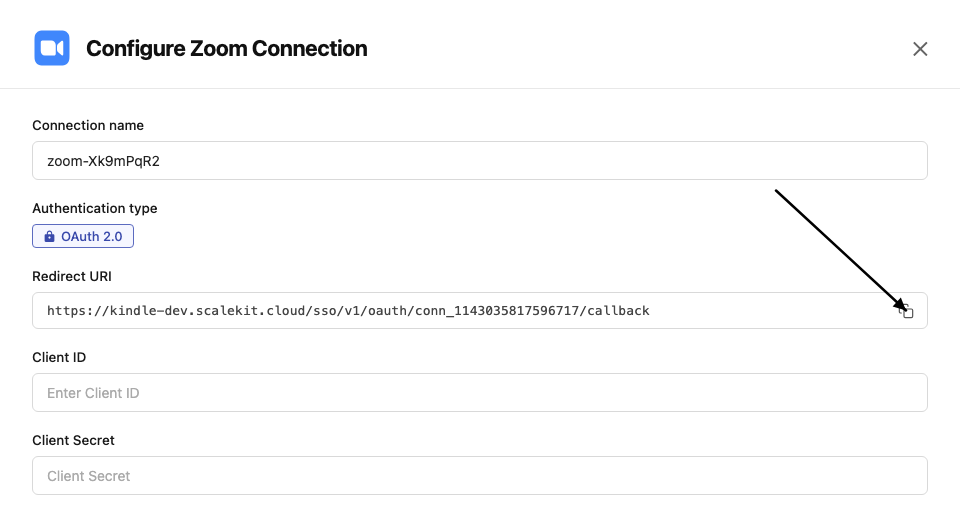
-
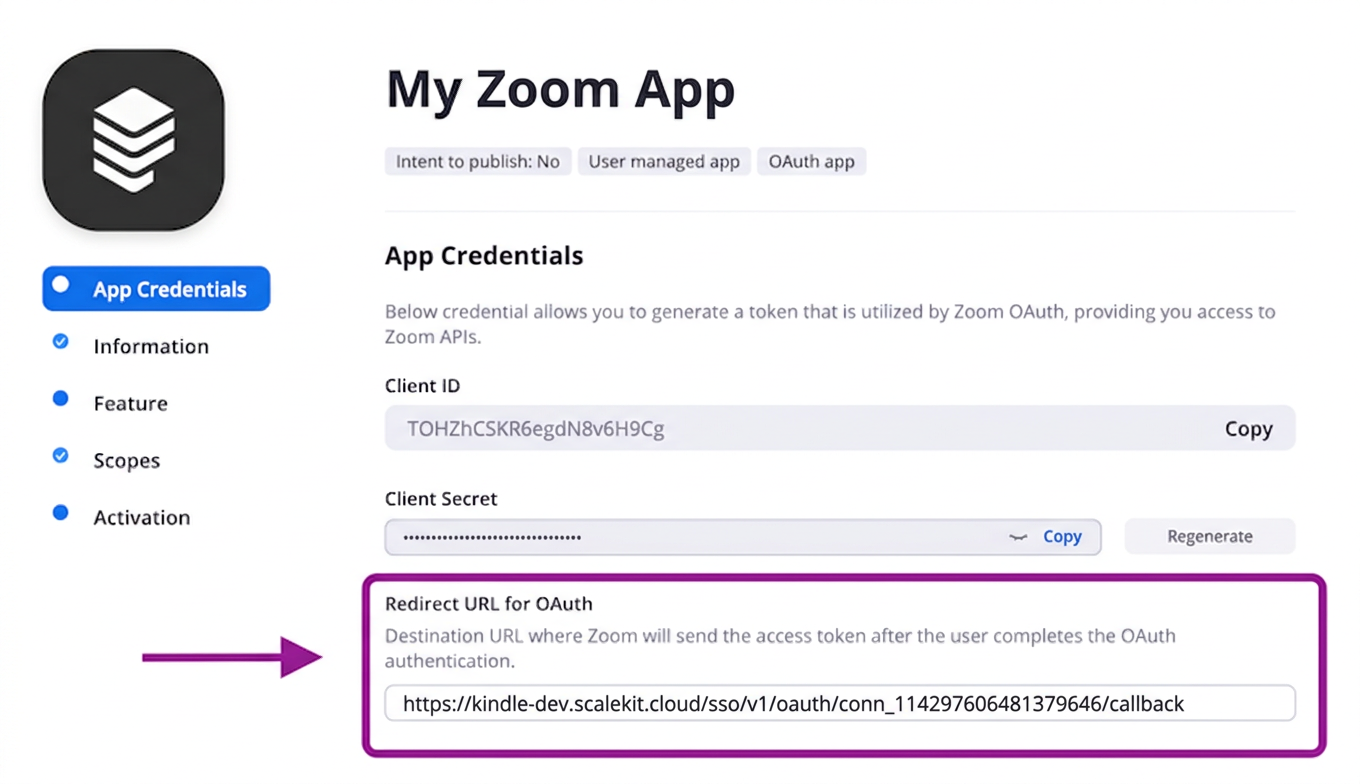
In the Zoom App Marketplace, open your app and go to App Credentials.
-
Paste the copied URI into the Redirect URL for OAuth field and also add it to the OAuth allow list.
-
-
Get client credentials
- In the Zoom App Marketplace, open your app and go to App Credentials:
- Client ID — listed under Client ID
- Client Secret — listed under Client Secret
- In the Zoom App Marketplace, open your app and go to App Credentials:
-
Add credentials in Scalekit
-
In Scalekit dashboard, go to AgentKit > Connections and open the connection you created.
-
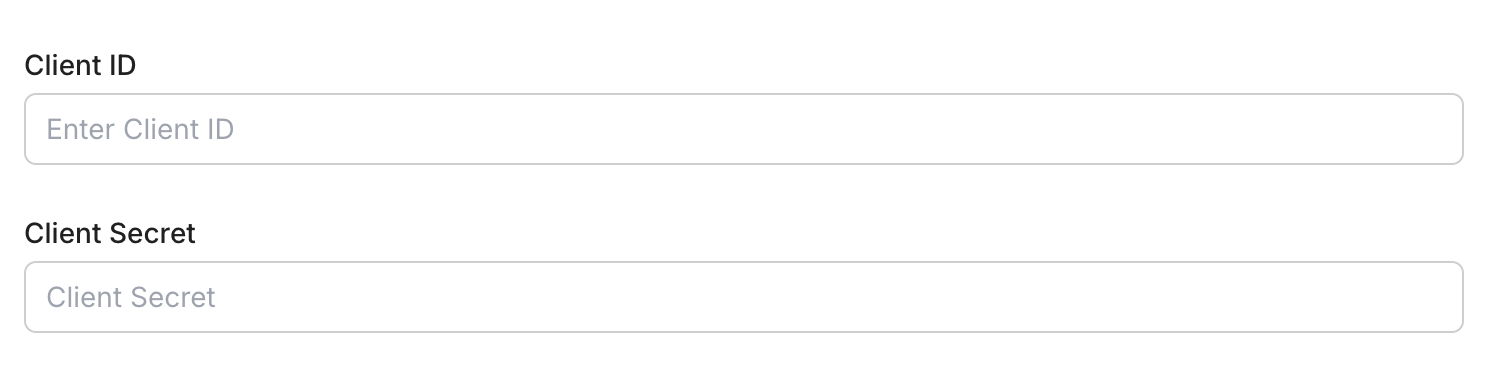
Enter your credentials:
- Client ID (from your Zoom app)
- Client Secret (from your Zoom app)
- Permissions — select the scopes your app needs
-
Click Save.
-
-
-
Authorize and make your first call
Section titled “Authorize and make your first call”quickstart.ts import { ScalekitClient } from '@scalekit-sdk/node'import 'dotenv/config'const scalekit = new ScalekitClient(process.env.SCALEKIT_ENV_URL,process.env.SCALEKIT_CLIENT_ID,process.env.SCALEKIT_CLIENT_SECRET,)const actions = scalekit.actionsconst connector = 'zoom'const identifier = 'user_123'// Generate an authorization link for the userconst { link } = await actions.getAuthorizationLink({ connectionName: connector, identifier })console.log('Authorize Zoom:', link)process.stdout.write('Press Enter after authorizing...')await new Promise(r => process.stdin.once('data', r))// Make your first API call through the proxyconst result = await actions.request({connectionName: connector,identifier,path: '/v2/users/me',method: 'GET',})console.log(result)quickstart.py import osfrom scalekit.client import ScalekitClientfrom dotenv import load_dotenvload_dotenv()scalekit_client = ScalekitClient(env_url=os.getenv("SCALEKIT_ENV_URL"),client_id=os.getenv("SCALEKIT_CLIENT_ID"),client_secret=os.getenv("SCALEKIT_CLIENT_SECRET"),)actions = scalekit_client.actionsconnection_name = "zoom"identifier = "user_123"# Generate an authorization link for the userlink_response = actions.get_authorization_link(connection_name=connection_name,identifier=identifier,)print("Authorize Zoom:", link_response.link)input("Press Enter after authorizing...")# Make your first API call through the proxyresult = actions.request(connection_name=connection_name,identifier=identifier,path="/v2/users/me",method="GET",)print(result)
Common workflows
Section titled “Common workflows”Proxy API call
const result = await actions.request({ connectionName: 'zoom', identifier: 'user_123', path: '/v2/users/me', method: 'GET',});console.log(result);result = actions.request( connection_name='zoom', identifier='user_123', path="/v2/users/me", method="GET")print(result)Execute a tool
const result = await actions.executeTool({ connector: 'zoom', identifier: 'user_123', toolName: 'zoom_list', toolInput: {},});console.log(result);result = actions.execute_tool( tool_input={}, tool_name='zoom_list', connection_name='zoom', identifier='user_123',)print(result)