


Google Sheets connector
OAuth 2.0 filesdocumentsdataanalyticsConnect to Google Sheets. Create, edit, and analyze spreadsheets with powerful data management capabilities
Google Sheets connector
-
Install the SDK
Section titled “Install the SDK”Terminal window npm install @scalekit-sdk/nodeTerminal window pip install scalekit -
Set your credentials
Section titled “Set your credentials”Add your Scalekit credentials to your
.envfile. Find values in app.scalekit.com > Developers > API Credentials..env SCALEKIT_ENVIRONMENT_URL=<your-environment-url>SCALEKIT_CLIENT_ID=<your-client-id>SCALEKIT_CLIENT_SECRET=<your-client-secret> -
Set up the connector
Section titled “Set up the connector”Register your Google Sheets credentials with Scalekit so it handles the token lifecycle. You do this once per environment.
Dashboard setup steps
Register your Scalekit environment with the Google Sheets connector so Scalekit handles the authentication flow and token lifecycle for you. The connection name you create will be used to identify and invoke the connection programmatically. Then complete the configuration in your application as follows:
-
Set up auth redirects
-
In Scalekit dashboard, go to AgentKit > Connections > Create Connection. Find Google Sheets and click Create. Click Use your own credentials and copy the redirect URI. It looks like
https://<SCALEKIT_ENVIRONMENT_URL>/sso/v1/oauth/<CONNECTION_ID>/callback.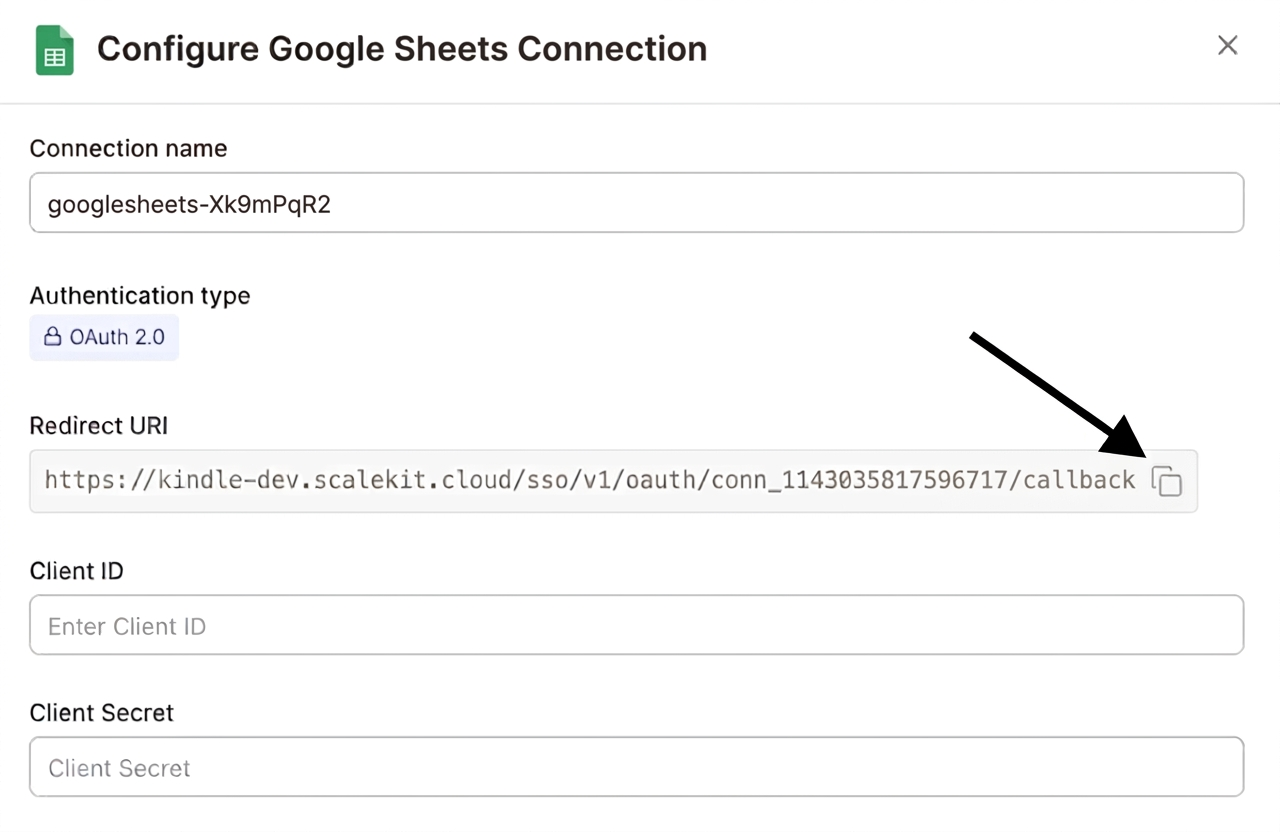
-
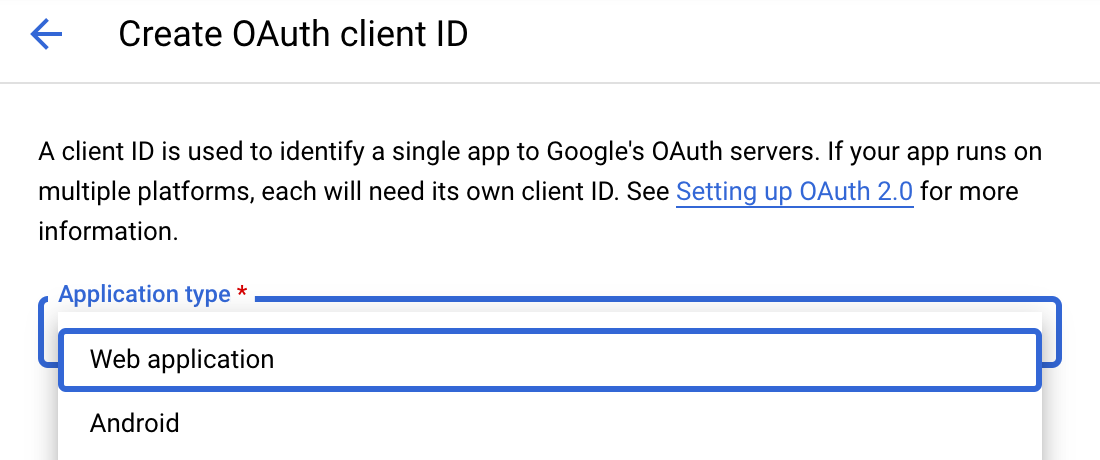
Navigate to Google Cloud Console → APIs & Services → Credentials. Select + Create Credentials, then OAuth client ID. Choose Web application from the Application type menu.
-
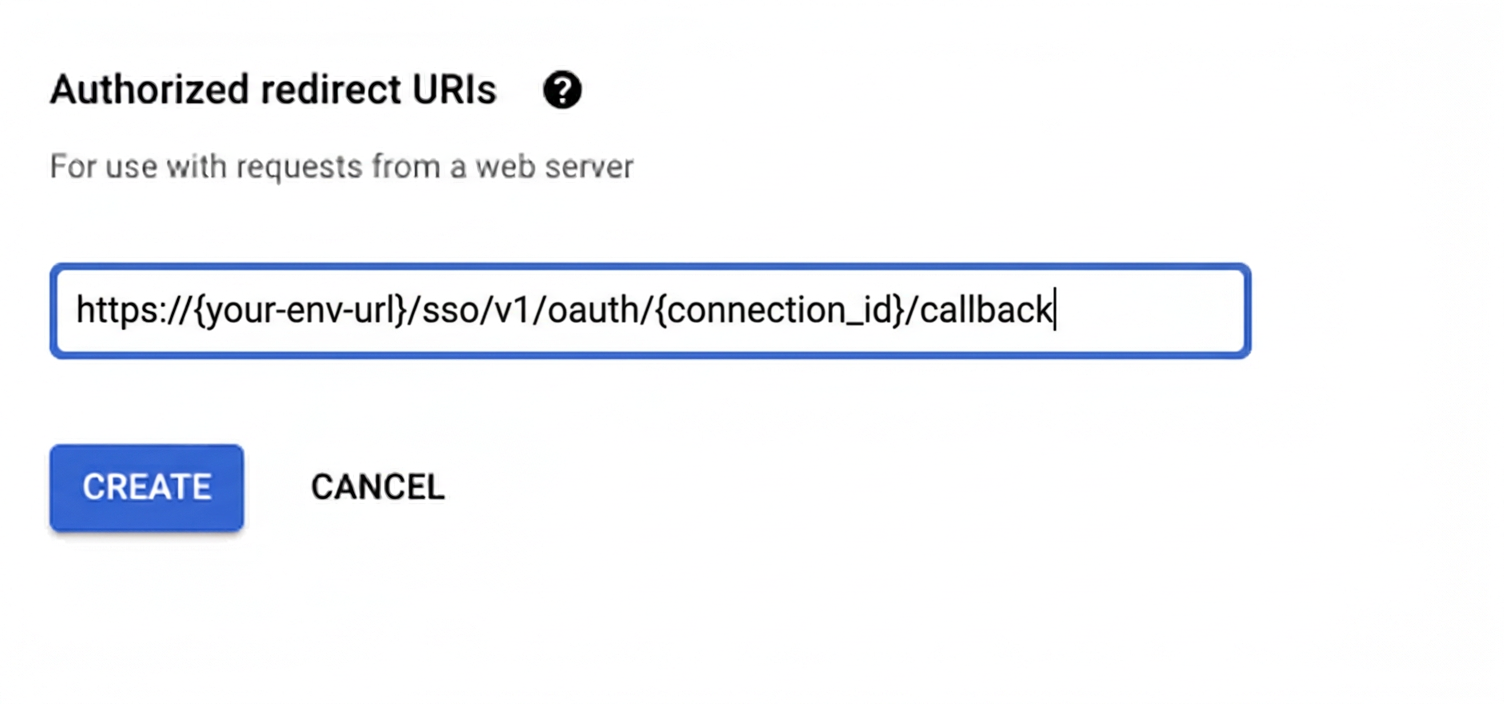
Under Authorized redirect URIs, click + Add URI, paste the redirect URI, and click Create.
-
-
Enable the Google Sheets API
- In Google Cloud Console, go to APIs & Services → Library. Search for “Google Sheets API” and click Enable.
-
Get client credentials
- Google provides your Client ID and Client Secret after you create the OAuth client ID in step 1.
-
Add credentials in Scalekit
-
In Scalekit dashboard, go to AgentKit > Connections and open the connection you created.
-
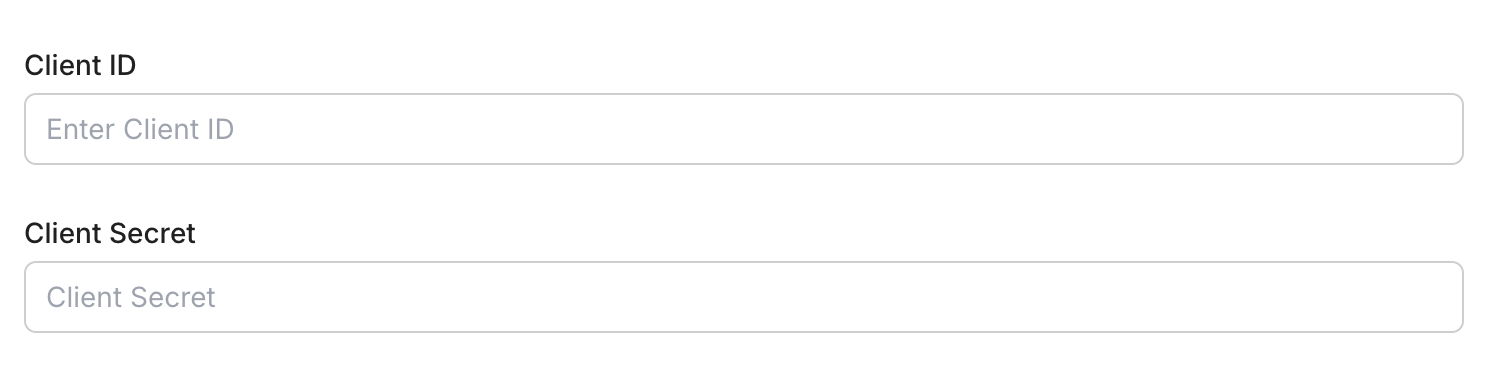
Enter your credentials:
- Client ID (from above)
- Client Secret (from above)
- Permissions (scopes — see Google API Scopes reference)
-
Click Save.
-
-
-
Authorize and make your first call
Section titled “Authorize and make your first call”quickstart.ts import { ScalekitClient } from '@scalekit-sdk/node'import 'dotenv/config'const scalekit = new ScalekitClient(process.env.SCALEKIT_ENV_URL,process.env.SCALEKIT_CLIENT_ID,process.env.SCALEKIT_CLIENT_SECRET,)const actions = scalekit.actionsconst connector = 'googlesheets'const identifier = 'user_123'// Generate an authorization link for the userconst { link } = await actions.getAuthorizationLink({ connectionName: connector, identifier })console.log('Authorize Google Sheets:', link)process.stdout.write('Press Enter after authorizing...')await new Promise(r => process.stdin.once('data', r))// Make your first callconst result = await actions.executeTool({connector,identifier,toolName: 'googlesheets_read_spreadsheet',toolInput: { spreadsheet_id: 'YOUR_SPREADSHEET_ID' },})console.log(result)quickstart.py import osfrom scalekit.client import ScalekitClientfrom dotenv import load_dotenvload_dotenv()scalekit_client = ScalekitClient(env_url=os.getenv("SCALEKIT_ENV_URL"),client_id=os.getenv("SCALEKIT_CLIENT_ID"),client_secret=os.getenv("SCALEKIT_CLIENT_SECRET"),)actions = scalekit_client.actionsconnection_name = "googlesheets"identifier = "user_123"# Generate an authorization link for the userlink_response = actions.get_authorization_link(connection_name=connection_name,identifier=identifier,)print("Authorize Google Sheets:", link_response.link)input("Press Enter after authorizing...")# Make your first callresult = actions.execute_tool(tool_input={"spreadsheet_id":"YOUR_SPREADSHEET_ID"},tool_name="googlesheets_read_spreadsheet",connection_name=connection_name,identifier=identifier,)print(result)
What you can do
Section titled “What you can do”Connect this agent connector to let your agent:
- Values clear, append — Clear all values in a specified range of a Google Sheets spreadsheet
- Update values — Update cell values in a specific range of a Google Sheet
- Get values — Returns only the cell values from a specific range in a Google Sheet — no metadata, no formatting, just the data
- Read spreadsheet — Returns everything about a spreadsheet — including spreadsheet metadata, sheet properties, cell values, formatting, themes, and pixel sizes
- Create spreadsheet — Create a new Google Sheets spreadsheet with an optional title and initial sheet configuration
Common workflows
Section titled “Common workflows”Proxy API call
const result = await actions.request({ connectionName: 'googlesheets', identifier: 'user_123', path: '/v4/spreadsheets', method: 'GET',});console.log(result);result = actions.request( connection_name='googlesheets', identifier='user_123', path="/v4/spreadsheets", method="GET")print(result)googlesheets_create_spreadsheet
Create a new Google Sheets spreadsheet with an optional title and initial sheet configuration. Returns the new spreadsheet ID and metadata.
| Name | Type | Required | Description |
|---|---|---|---|
locale | string | No | Locale of the spreadsheet |
schema_version | string | No | Optional schema version to use for tool execution |
sheets | array<object> | No | Initial sheets to include in the spreadsheet |
time_zone | string | No | Time zone for the spreadsheet |
title | string | No | Title of the new spreadsheet |
tool_version | string | No | Optional tool version to use for execution |
googlesheets_get_values
Returns only the cell values from a specific range in a Google Sheet — no metadata, no formatting, just the data. For full spreadsheet metadata and formatting, use googlesheets_read_spreadsheet instead.
| Name | Type | Required | Description |
|---|---|---|---|
major_dimension | string | No | Whether values are returned by rows or columns |
range | string | Yes | Cell range to read in A1 notation |
schema_version | string | No | Optional schema version to use for tool execution |
spreadsheet_id | string | Yes | The ID of the Google Sheet |
tool_version | string | No | Optional tool version to use for execution |
value_render_option | string | No | How values should be rendered in the response |
googlesheets_read_spreadsheet
Returns everything about a spreadsheet — including spreadsheet metadata, sheet properties, cell values, formatting, themes, and pixel sizes. If you only need cell values, use googlesheets_get_values instead.
| Name | Type | Required | Description |
|---|---|---|---|
include_grid_data | boolean | No | Include cell data in the response |
ranges | string | No | Cell range to read in A1 notation |
schema_version | string | No | Optional schema version to use for tool execution |
spreadsheet_id | string | Yes | The ID of the Google Sheet to read |
tool_version | string | No | Optional tool version to use for execution |
googlesheets_update_values
Update cell values in a specific range of a Google Sheet. Supports writing single cells or multiple rows and columns at once.
| Name | Type | Required | Description |
|---|---|---|---|
include_values_in_response | boolean | No | Return the updated cell values in the response |
range | string | Yes | Cell range to update in A1 notation |
schema_version | string | No | Optional schema version to use for tool execution |
spreadsheet_id | string | Yes | The ID of the Google Sheet to update |
tool_version | string | No | Optional tool version to use for execution |
value_input_option | string | No | How input values should be interpreted |
values | array<array> | Yes | 2D array of values to write to the range |
Execute a tool
const result = await actions.executeTool({ connector: 'googlesheets', identifier: 'user_123', toolName: 'googlesheets_get_values', toolInput: { spreadsheet_id: '<SPREADSHEET_ID>', range: 'Sheet1!A1:D10', },});console.log(result);result = actions.execute_tool( connection_name='googlesheets', identifier='user_123', tool_name='googlesheets_get_values', tool_input={ "spreadsheet_id": "<SPREADSHEET_ID>", "range": "Sheet1!A1:D10", },)print(result)Tool list
Section titled “Tool list”Use the exact tool names from the Tool list below when you call execute_tool. If you’re not sure which name to use, list the tools available for the current user first.
googlesheets_append_values
#
Append rows of data to a Google Sheets spreadsheet. Data is added after the last row with existing content in the specified range. 5 params
Append rows of data to a Google Sheets spreadsheet. Data is added after the last row with existing content in the specified range.
range string required The A1 notation range to append data to (e.g. Sheet1!A1) spreadsheet_id string required The ID of the spreadsheet to append data to values array required 2D array of values to append. Each inner array is a row. insert_data_option string optional How the input data should be inserted. Options: INSERT_ROWS (inserts new rows), OVERWRITE (overwrites existing data). Default: OVERWRITE value_input_option string optional How input data should be interpreted. Options: RAW (literal values), USER_ENTERED (as if typed in UI, parses formulas/dates). Default: USER_ENTERED googlesheets_clear_values
#
Clear all values in a specified range of a Google Sheets spreadsheet. Formatting is preserved; only the cell values are cleared. 2 params
Clear all values in a specified range of a Google Sheets spreadsheet. Formatting is preserved; only the cell values are cleared.
range string required The A1 notation range to clear (e.g. Sheet1!A1:D10) spreadsheet_id string required The ID of the spreadsheet to clear values in googlesheets_create_spreadsheet
#
Create a new Google Sheets spreadsheet with an optional title and initial sheet configuration. Returns the new spreadsheet ID and metadata. 6 params
Create a new Google Sheets spreadsheet with an optional title and initial sheet configuration. Returns the new spreadsheet ID and metadata.
locale string optional Locale of the spreadsheet schema_version string optional Optional schema version to use for tool execution sheets array optional Initial sheets to include in the spreadsheet time_zone string optional Time zone for the spreadsheet title string optional Title of the new spreadsheet tool_version string optional Optional tool version to use for execution googlesheets_get_values
#
Returns only the cell values from a specific range in a Google Sheet — no metadata, no formatting, just the data. For full spreadsheet metadata and formatting, use googlesheets_read_spreadsheet instead. 6 params
Returns only the cell values from a specific range in a Google Sheet — no metadata, no formatting, just the data. For full spreadsheet metadata and formatting, use googlesheets_read_spreadsheet instead.
range string required Cell range to read in A1 notation spreadsheet_id string required The ID of the Google Sheet major_dimension string optional Whether values are returned by rows or columns schema_version string optional Optional schema version to use for tool execution tool_version string optional Optional tool version to use for execution value_render_option string optional How values should be rendered in the response googlesheets_read_spreadsheet
#
Returns everything about a spreadsheet — including spreadsheet metadata, sheet properties, cell values, formatting, themes, and pixel sizes. If you only need cell values, use googlesheets_get_values instead. 5 params
Returns everything about a spreadsheet — including spreadsheet metadata, sheet properties, cell values, formatting, themes, and pixel sizes. If you only need cell values, use googlesheets_get_values instead.
spreadsheet_id string required The ID of the Google Sheet to read include_grid_data boolean optional Include cell data in the response ranges string optional Cell range to read in A1 notation schema_version string optional Optional schema version to use for tool execution tool_version string optional Optional tool version to use for execution googlesheets_update_values
#
Update cell values in a specific range of a Google Sheet. Supports writing single cells or multiple rows and columns at once. 7 params
Update cell values in a specific range of a Google Sheet. Supports writing single cells or multiple rows and columns at once.
range string required Cell range to update in A1 notation spreadsheet_id string required The ID of the Google Sheet to update values array required 2D array of values to write to the range include_values_in_response boolean optional Return the updated cell values in the response schema_version string optional Optional schema version to use for tool execution tool_version string optional Optional tool version to use for execution value_input_option string optional How input values should be interpreted